Getting Started
Add a URL, get notified when it changes. Optionally connect ChatGPT or Claude for AI-assisted review.
Set Up Your Dashboard
Sign in with your email, add the pages you care about, and start getting notified.
Sign in or create an account
Go to the sign-in page and enter your email. We'll send you a magic link. No password needed, and new accounts are created automatically.
Add your first tracker
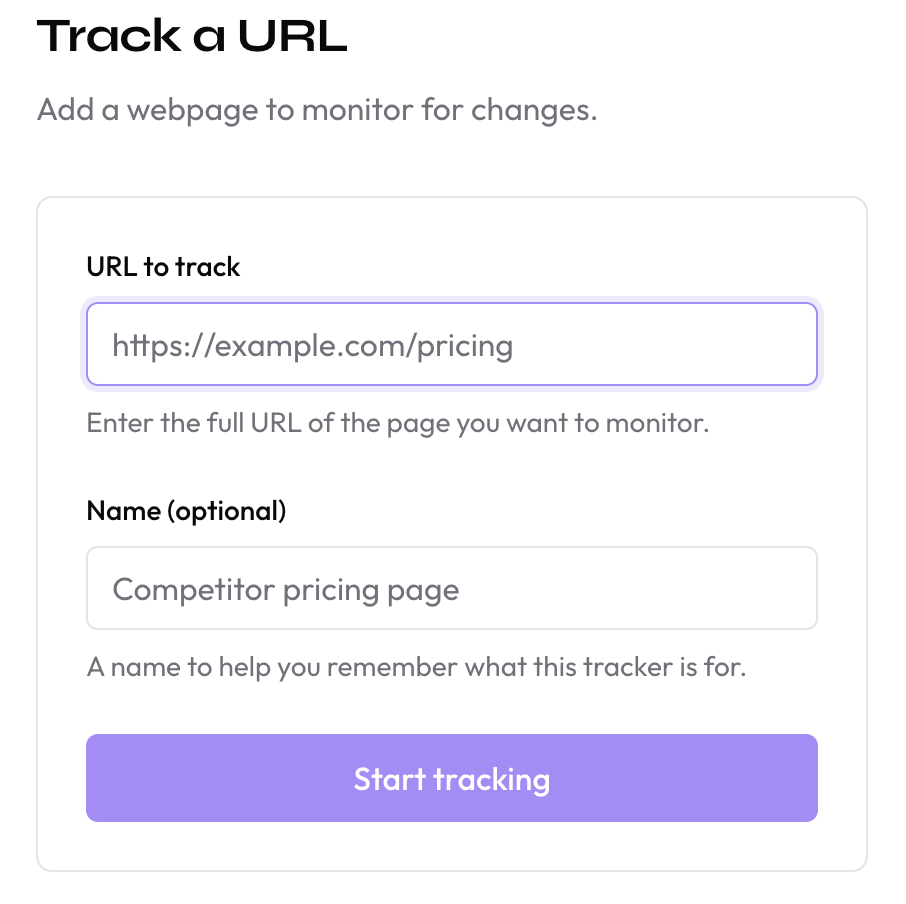
Paste any public URL and click Track. Works with pricing pages, changelogs, docs, job boards, or anything else you want to monitor.
Get notified when something changes
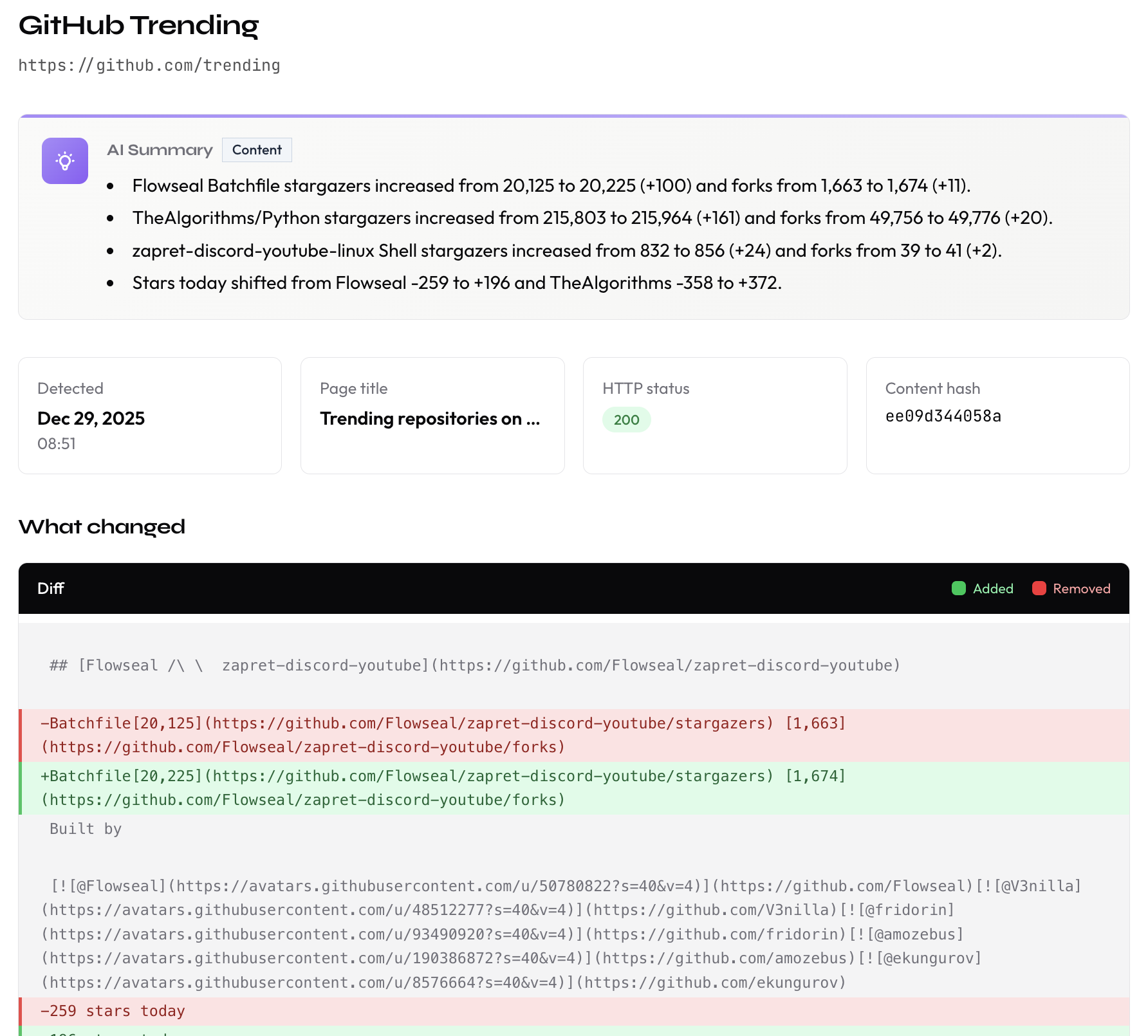
We'll email you when a change is detected, with an AI summary of what's different. You can also subscribe via RSS or review changes in the dashboard.
Connect AI (Optional)
Connect ChatGPT or Claude to ask questions about your tracked changes in natural language.
Copy the MCP endpoint
https://diditchange.app/mcp
Add to your AI client
Open your AI assistant's settings and add a new MCP server. Select OAuth for authentication.

ChatGPT
Settings → Apps → Create app

Claude Desktop
Settings → Connectors → Add connector
Ask about your changes
Once connected, ask your AI to summarize changes, compare pricing, or explain what's different.
For the full list of AI tools and capabilities, see the MCP documentation.
Tips
Filter with CSS selectors
Exclude ads, timestamps, or carousels. Focus only on the content that matters.
.carousel, .ad-banner, #timestamp
Enable email notifications
Get an email the moment something changes. Toggle per tracker in your dashboard.
Read AI summaries
Every change includes a plain-English summary of what's new, so you can skip the noise.
FAQ
What URLs can I track?
Any publicly accessible URL. This includes marketing pages, pricing pages, documentation, blogs, job boards, and more. We can't track pages that require login, are behind a paywall, or explicitly forbid automated access.
How often does DidItChange check my URLs?
Free accounts check every 3 hours. Pro accounts check every hour. You can also trigger a manual check anytime from the dashboard.
What is MCP?
MCP (Model Context Protocol) is an open standard that lets AI assistants connect to external tools. Think of it like USB for AI, one connection works with any compatible assistant. Both ChatGPT and Claude support MCP.
What's the difference between Free and Pro?
Free trial (14 days): 5 tracked URLs, checks every 3 hours, 14-day history.
Pro ($29/month): 25 tracked URLs, hourly checks, 180-day history, AI-powered summaries.
Ready to start?
Create a free account and add your first tracker. No credit card required.
Create Free Account14-day free trial. No credit card required.